Set your default tax rate
Add a tax rate on Tax settings and mark it as the default. Only documents created from now on start with it. Existing ones keep their tax.
Add a default tax rate
- Open Settings → Tax settings (Tax Settings in the Zaras app).
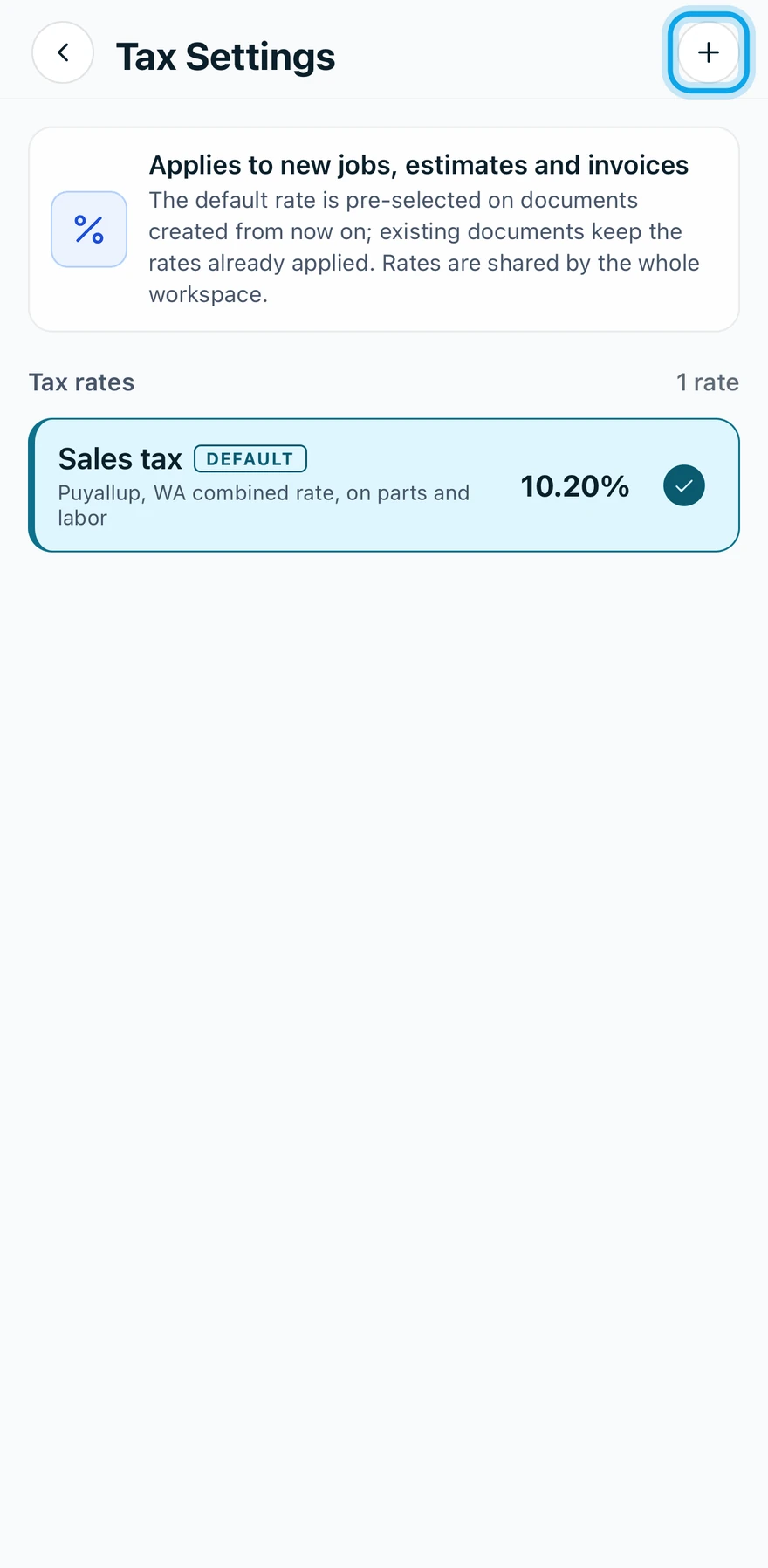
- Press Add tax rate on the web, or tap the + at the top right in the app.
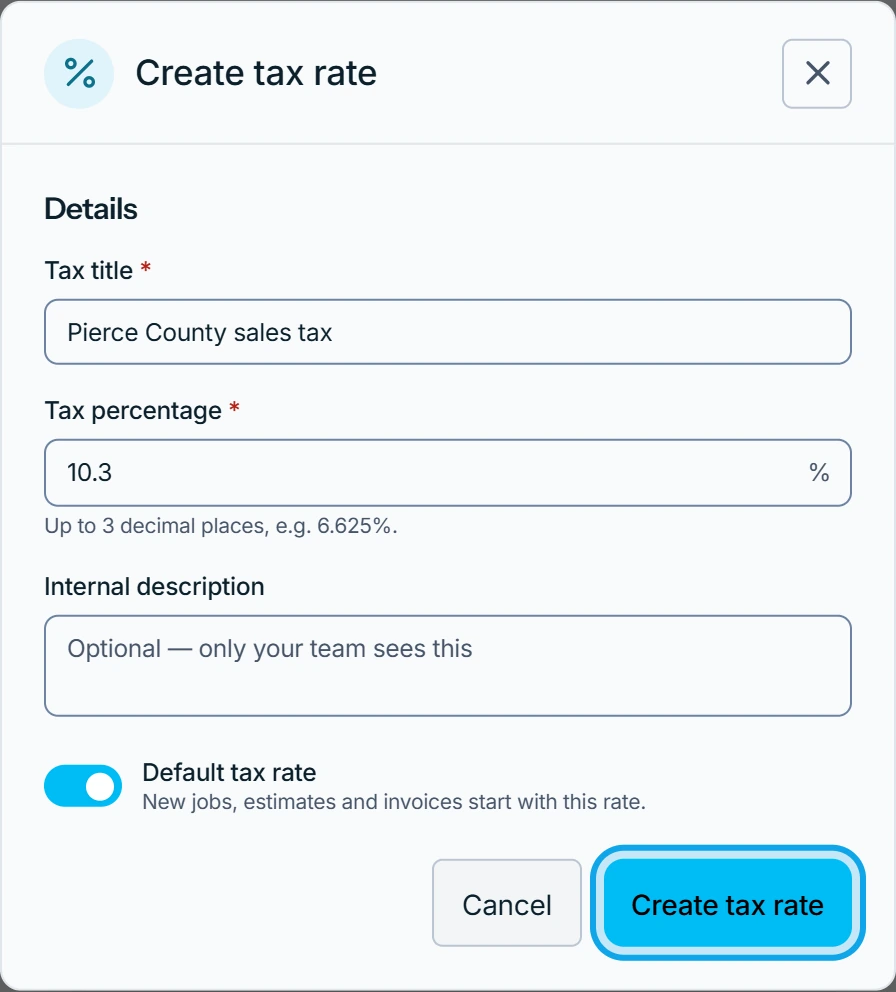
- Enter the Tax title and the Tax percentage.
- Turn on Default tax rate.
- Press Create tax rate.
Repeat for each rate you charge.
What you see
The rate joins the list, marked Default. The page carries Applies to new jobs, estimates and invoices: existing documents keep the rates already applied.
Change or delete a rate
Open the rate to edit it, then press Save tax rate on the web, or tap Save in the app. To remove it, press Delete tax rate and confirm. Documents already using it keep their own tax. Deleting is permanent.
Deleting the default leaves new work with no tax rate until you pick another.
Who can do this
It needs Manage financial settings, held by owners and admins by default. Others ask an owner or admin under Settings → Team & roles → Roles.