Connect Stripe and turn on card payments
Connect a Stripe account, then switch on Accept online payments so customers can pay invoices by card. Card payments go to the Stripe account of whoever connects it, so connect it as the owner.
Connect Stripe
- Open Settings → Online payments.
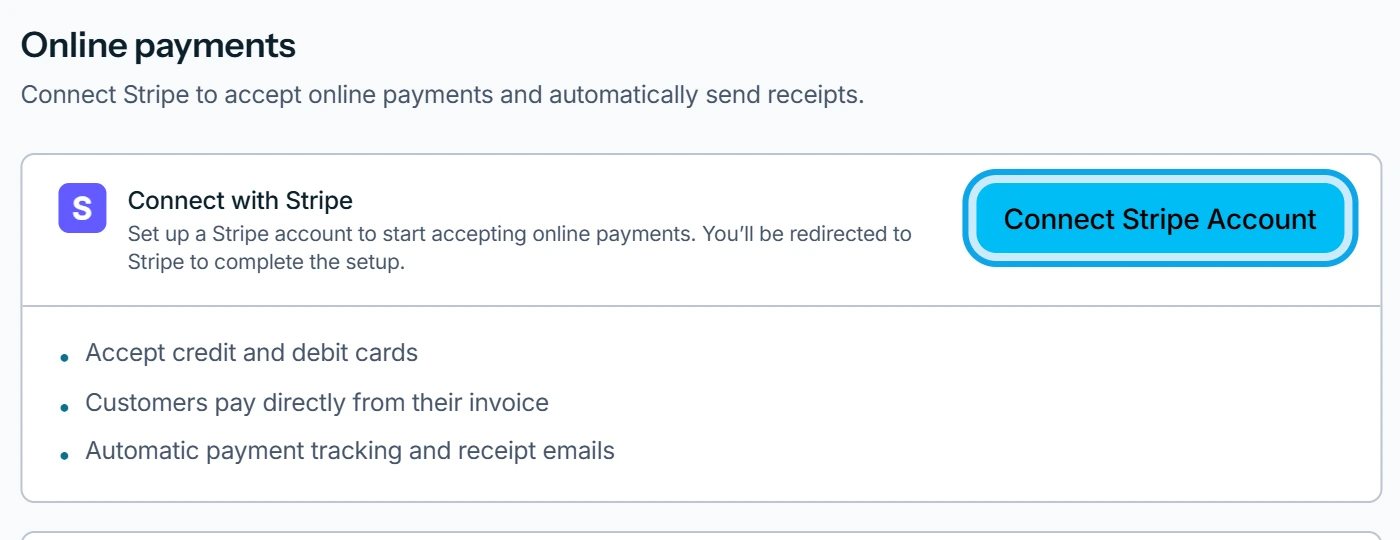
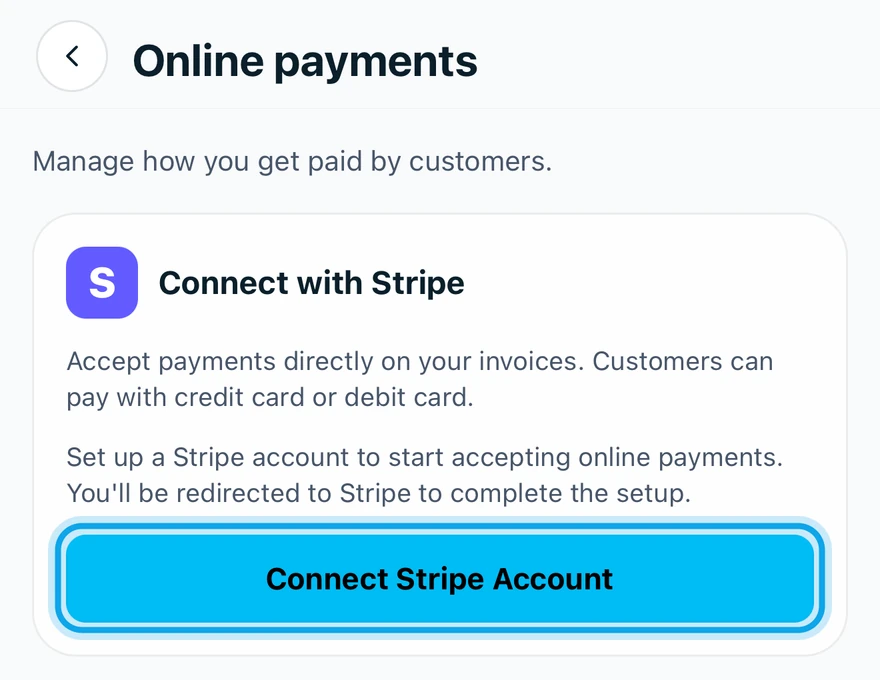
- Press Connect Stripe Account on the Connect with Stripe card.
- Give Stripe your identity and bank details.
- Wait for Stripe Connected and Ready to accept card payments (Stripe connected in the app).
- Turn on Accept online payments.
- Press Enable in Enable online payments?.
What you see
Online payments enabled confirms it, and open invoices show customers a pay now button. Turn on Auto-send payment receipts to email a receipt after each card payment.
To stop, turn the switch off and press Disable. Customers will no longer see the pay now button on invoices. Payments already in progress will still complete.
The card reads Stripe Setup incomplete
You left Stripe part-way. Press Continue setup (Continue Setup in the app). The switch stays locked until Stripe reports card payments active: see why Stripe says card payments are not active.
Who can do this
It needs Manage financial settings, held by owners and admins by default. If ownership moves, Online payments are paused until the new owner connects their own account.