Your customers now hear from you automatically
Zaras emails your customers at the usual moments of a job, from the approved estimate to the review request. Each email has its own switch.
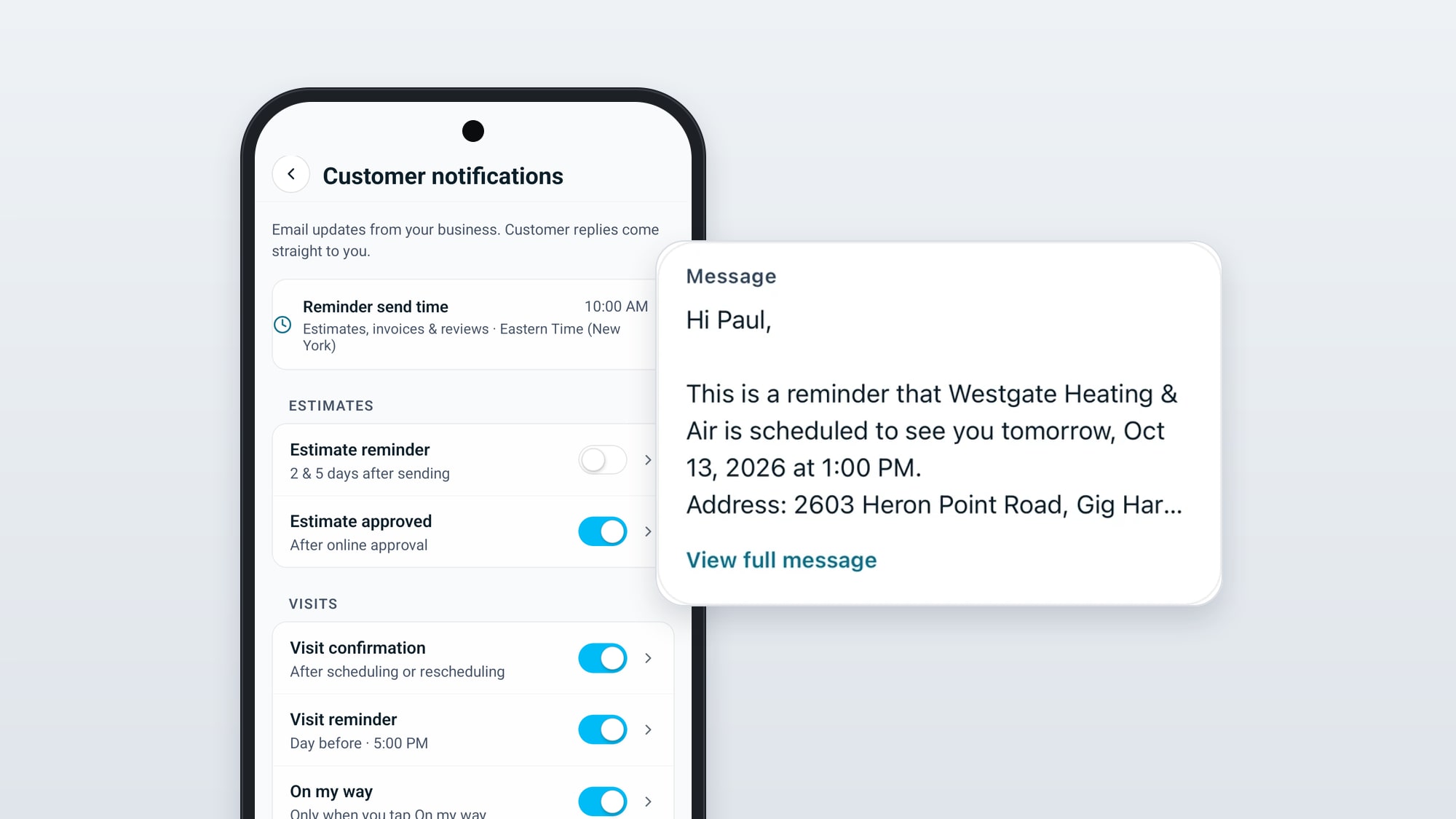
Zaras now sends the emails your customers expect, at the moments they expect them, on the web and in the Zaras app. You set it up once and it runs on every job. Customer replies come straight to you.
What goes out and when
- A thank-you when a customer approves an estimate.
- A confirmation when a visit is scheduled or moved, with a calendar invite the customer adds in one tap.
- A reminder the evening before the visit, around 5 PM your time.
- An On my way email with the arrival time you pick, sent when you tap On my way.
- A thank-you when the job is completed.
- A review request the next morning, once you have added your review link.
- Estimate reminders 2 and 5 days after sending while the estimate is not approved.
- Invoice reminders on the due date and 3 days later while a balance is open.
You stay in charge
Each email has its own switch in Settings, under Communications, then Customer notifications. All of them start on. Open one to choose When to send, set its Send time or open Preview and edit email to read and change the words your customer gets. One Reminder send time at the top sets the hour for estimate and invoice reminders and review requests together.
Scheduling or moving a visit shows a Notify customer box, ticked for you, so you can skip the confirmation for that one change.
The words are yours
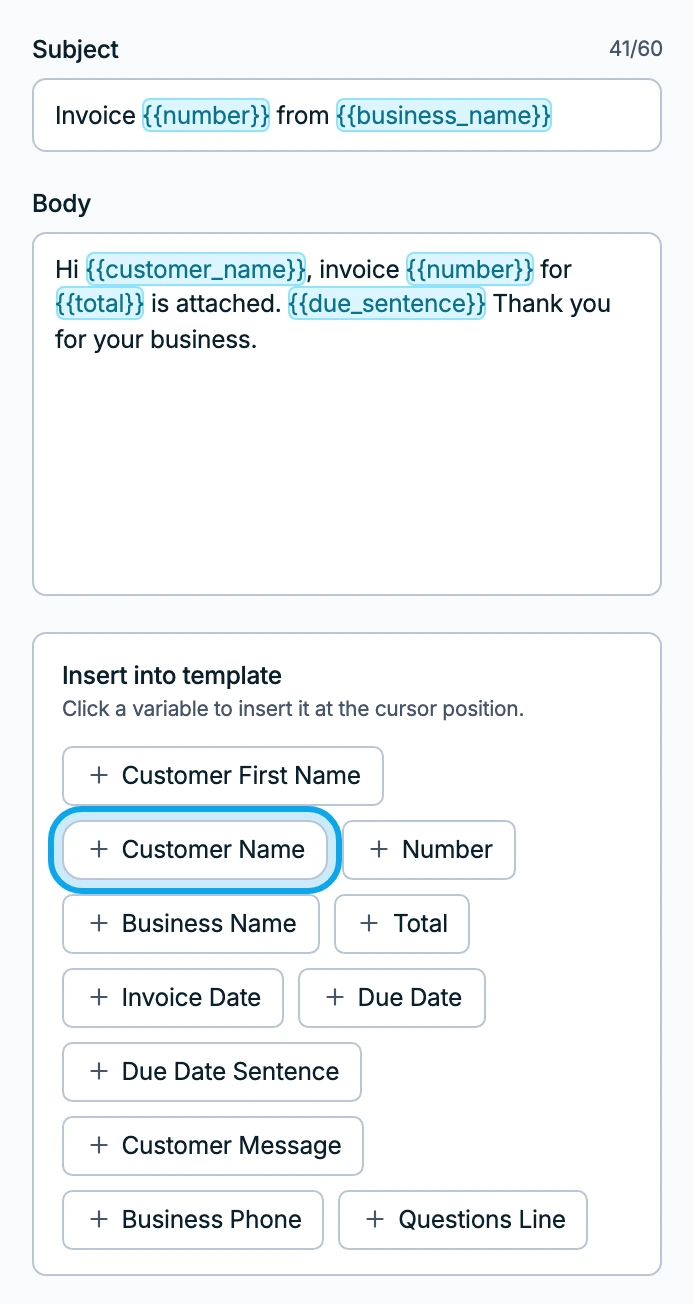
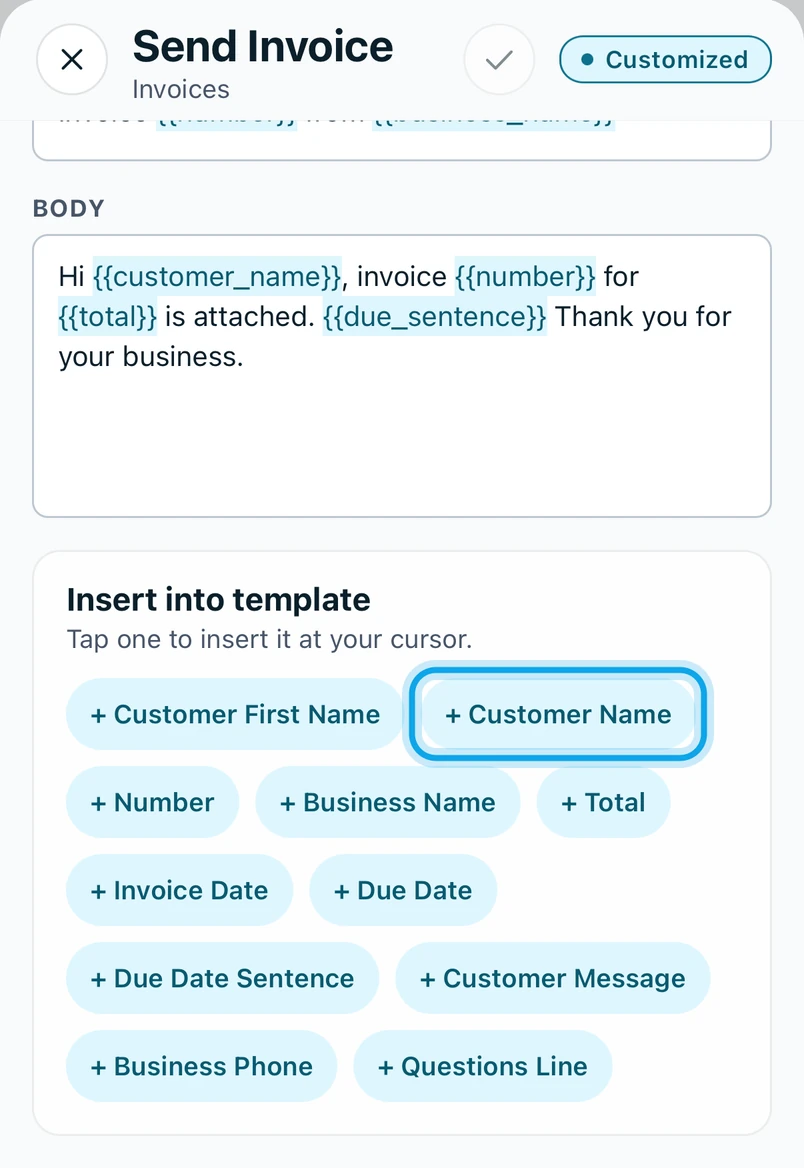
Every email starts from a template you can reword. On the web open Settings, then Communications, then Email templates. In the Zaras app open More, then Settings, then Email templates. Pick one, edit the Subject and Body and add details such as the customer's name from Insert into template. Reset to default brings back the original words.
Changing templates needs Manage templates, which owners, admins and the Office role hold.
Getting paid sooner
Invoice emails carry a Pay button with the amount when you take card payments, or your own instructions for paying when you do not. Once a customer opens an estimate or an invoice email, the communications log shows Viewed.
Email templates and the communications log
Reword each email, preview it and see every one your team sent with its delivery.