Two-factor sign-in and your signed-in devices
Ask for a code from an authenticator app at every sign-in and see every device where you are signed in. Both live on Security, on the web and in the Zaras app.
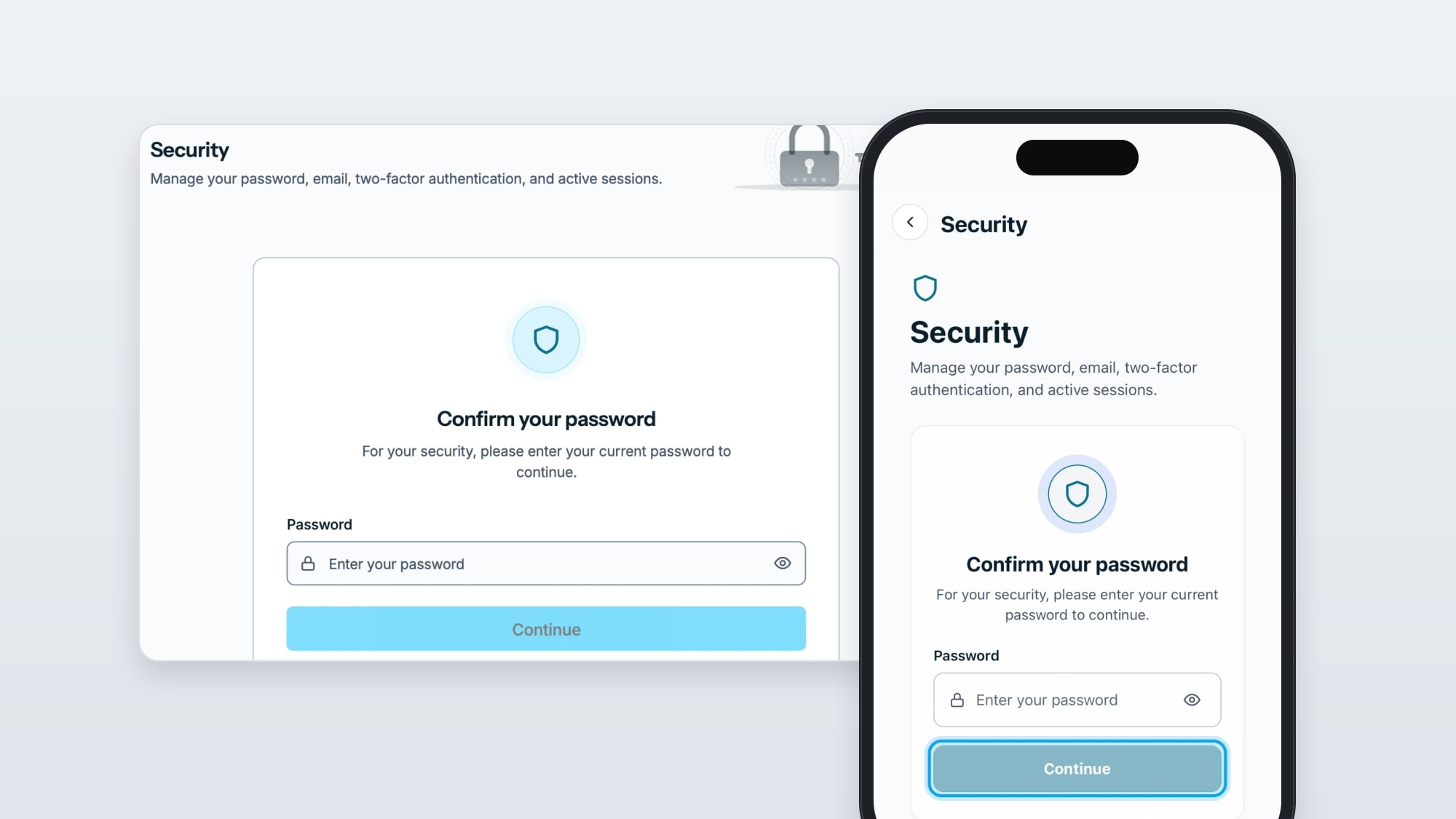
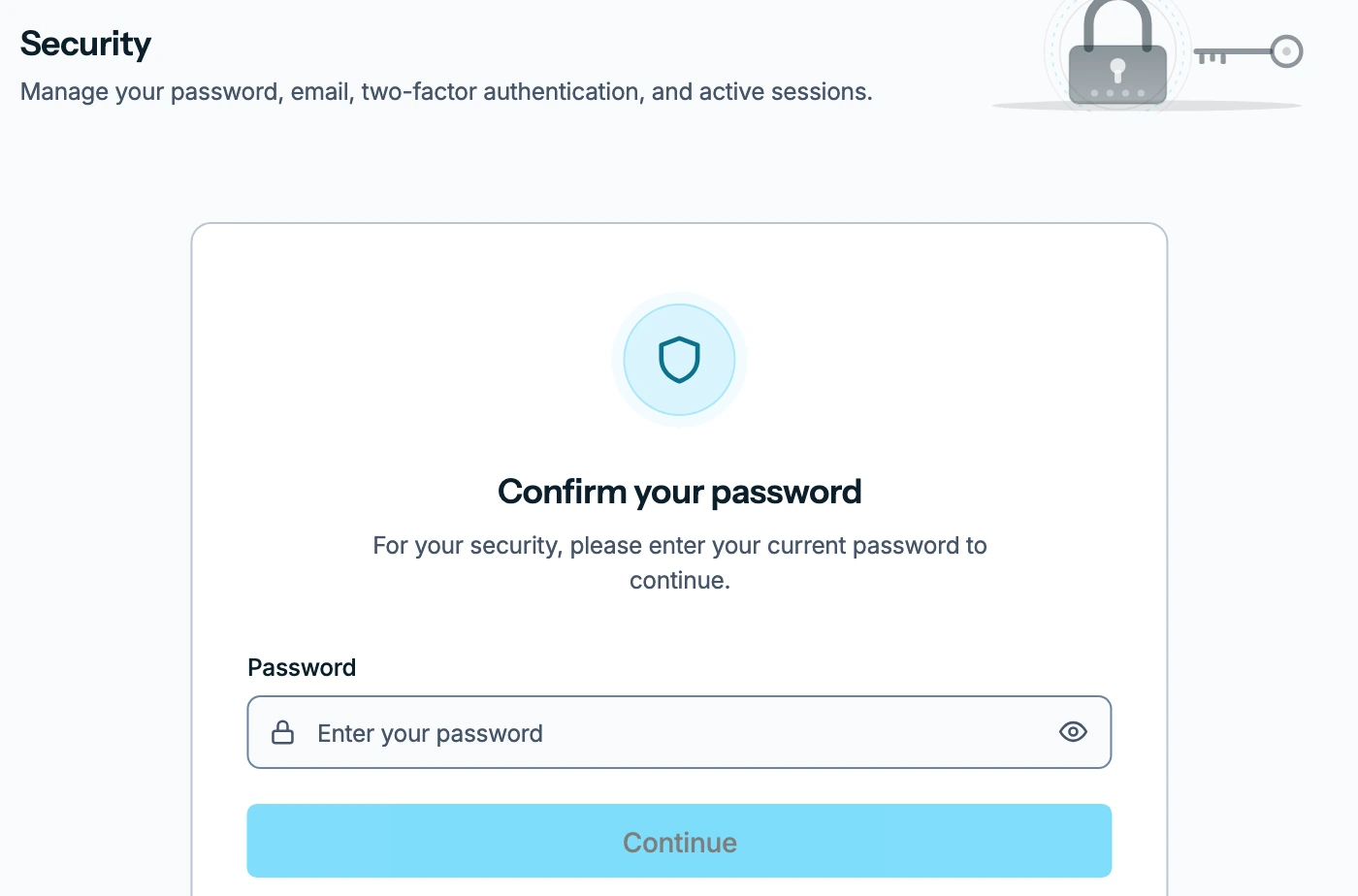
Your password, two-factor sign-in and signed-in devices now live on one page, Security, in Settings on the web and in the Zaras app. It opens with Confirm your password: enter your current password and press Continue. After five minutes the page locks again and shows Session timed out.
Turn on two-factor sign-in
- Under Two-factor authentication press Set up 2FA.
- Scan the QR code with an authenticator app, such as Google Authenticator or 1Password. Can't scan? shows a setup key to type in instead.
- Enter the 6-digit code and press Verify.
- Save your backup codes with Copy codes, Download on the web or Share in the app. Tick I saved these and press Done. Each code works once.
From then on, every sign-in stops at Two-step verification on the web or Two-factor authentication in the app after your password. Enter the code from your authenticator app and press Verify. Backup codes on Security shows how many you have left, and Create new codes replaces them.
See every signed-in device
Sessions lists every device where you are signed in, with this one marked Current. Press Sign out on a row to end that session, or Sign out all other sessions to end every session but the one in your hand. Changing your password signs out every other device too.
Two-factor sign-in, backup codes, signed-in devices and your password, step by step.